Vehicle Listing Ads (VLAs) have shifted from pilot to open beta in the UK as of 2025 (along with France and the Netherlands). This is a major development for automotive advertisers in these regions. They’ve already proven their value in the US, Canada and Australia, where they’ve become a go-to for dealerships and manufacturers who want to move inventory faster.
Why does this matter? Because VLAs combine Google’s reach with real-time vehicle data, showing car shoppers exactly what’s available. The make, model, price, mileage and the dealer’s name appear directly in search results. It means car dealers, retailers and OEMs (Original Equipment Manufacturers) get more qualified leads, stronger visibility and AI-driven performance across Search, YouTube and Display.
This Key Principles guide will walk you through how to set up Google Vehicle Listing Ads step-by-step. We’ll talk about eligibility requirements, setting up your feed and compliance essentials. We’ll also cover the latest updates for UK advertisers entering the open beta programme, plus how to optimise for both online and offline conversions.
If you’d rather skip the technical setup and focus on selling, our team can manage everything for you. Book a strategy session with Key Principles to get your Vehicle Listing Ads live and fully verified.
What Are Google Vehicle Listing Ads?
Google Vehicle Listing Ads (VLAs) are a performance-focused, lower-funnel ad format. They’re designed specifically for promoting automotive inventory. These are different from traditional text or shopping ads because they show real vehicles that are available for sale – and show the dealership location for each vehicle. The ads contain all the key details that buyers want to know when they’re actively buying.
Each ad has a high-quality image of the car. It lists its make, model, price, mileage and the dealer name directly displayed on Google Search. This gives users instant access to the information they need; there’s no need to click through multiple listings.
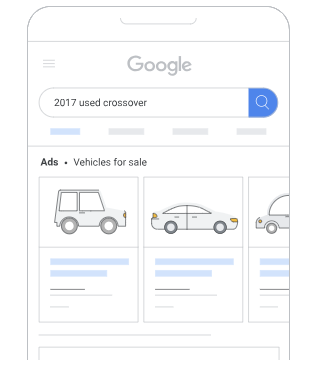
Image source: https://support.google.com/merchants/answer/11189169?hl=en-GB
When someone clicks on a Vehicle Listing Ad, they’re taken straight to the Vehicle Description Page (VDP) on your website and not your homepage. This means potential customers can head straight to the specific car they are interested it. It means it’s far easier for them to enquire, book a test drive or visit the dealership knowing what they want.
VLAs support both online and offline objectives too. This means dealers can get digital leads through enquiry forms as well as in-person visits from ready-to-buy customers.
Compared with standard Search or Shopping Ads, VLAs are feed-driven and visually better. They pull data directly from your Merchant Centre feed. The user’s search is automatically matched to the most relevant vehicle listings based on their search intent and browsing history. It means customers have a better and more efficient shopping experience. For dealers, their ads focus on conversion.
The Benefits of Vehicle Listing Ads
VLAs are a direct route to high-intent buyers. They display real vehicles with specifications and pricing upfront. These naturally attract qualified leads. It leads straight to people actively searching for cars, not ones that are just browsing. Because users can see key details before clicking, every visit to the dealer site is more purposeful. Each one is more likely to convert.
VLAs are also good for omnichannel optimisation. Google’s AI tracks both online and offline actions. This helps you measure the full customer journey right from viewing the ad to booking a test drive or walking into the dealership. The dual focus means both dealers and manufacturers can fine-tune their campaigns.
The process uses automated targeting, which means the ads are matched intelligently to relevant search queries. You don’t need to manage thousands of keywords manually. Google’s machine learning means the right listings appear at the right time. It’s better for efficiency and ROI.
For reach, VLAs are already live on Google Search and YouTube. They’ll be rolling out to the Display Network gradually.
Tip: VLAs bridge the gap between digital and dealership. They’re ideal for how people buy cars nowadays because online research often happens before in-person sales.
How Vehicle Listing Ads Work
Google Vehicle Listing Ads work through Performance Max campaigns that use a dedicated vehicle data field. The feed has structured information about your stock. This includes the make, model, price, mileage, fuel type, availability and location. Google’s AI uses this information to match listings with relevant user searches.
When someone searches for something like “used Ford Fiesta under £10,000,” Google will pull from your vehicle feed to display the most relevant listings. Each ad uses a real image from your stock feed, key specifications and your dealership name. When a user clicks on it, they’re taken directly to your Vehicle Description Page (VDP) and not a generic homepage.
To make it work, you need to connect three systems:
- Google Merchant Center. This is where you upload your vehicle feed and verify and manage it.
- Google Ads. This is where you build and optimise your Performance Max campaigns.
- Google Business Profile. This provides your verified location data for local visibility. Or if you don’t manage profiles directly, it will use a dealer shop feed.
Where Vehicle Listing Ads Are Available in 2025
Google Vehicle Listing Ads are live in several areas and they’re expanding steadily:
- Live in US, Canada and Australia.
- Open Beta in UK, France and the Netherlands.
- Closed Beta (via Google rep) in Germany, Italy, Spain and Japan.
Eligible participants are authorised dealers, retailers and OEMs who sell non-commercial passenger vehicles. Google explicitly excludes private sellers, brokers and certain vehicle types like two-wheelers, boats, buses and commercial or agricultural vehicles.
Although the UK is now part of the open beta, participation still requires allowlisting. Dealers must submit an application through Google’s official Vehicle Ads contact form. They must also make sure their Merchant Center account meets the eligibility criteria before campaigns can go live.
Tip: Getting on the allowlisted early means your dealership will be ready when VLAs move from open beta to full release across the UK and EU markets.
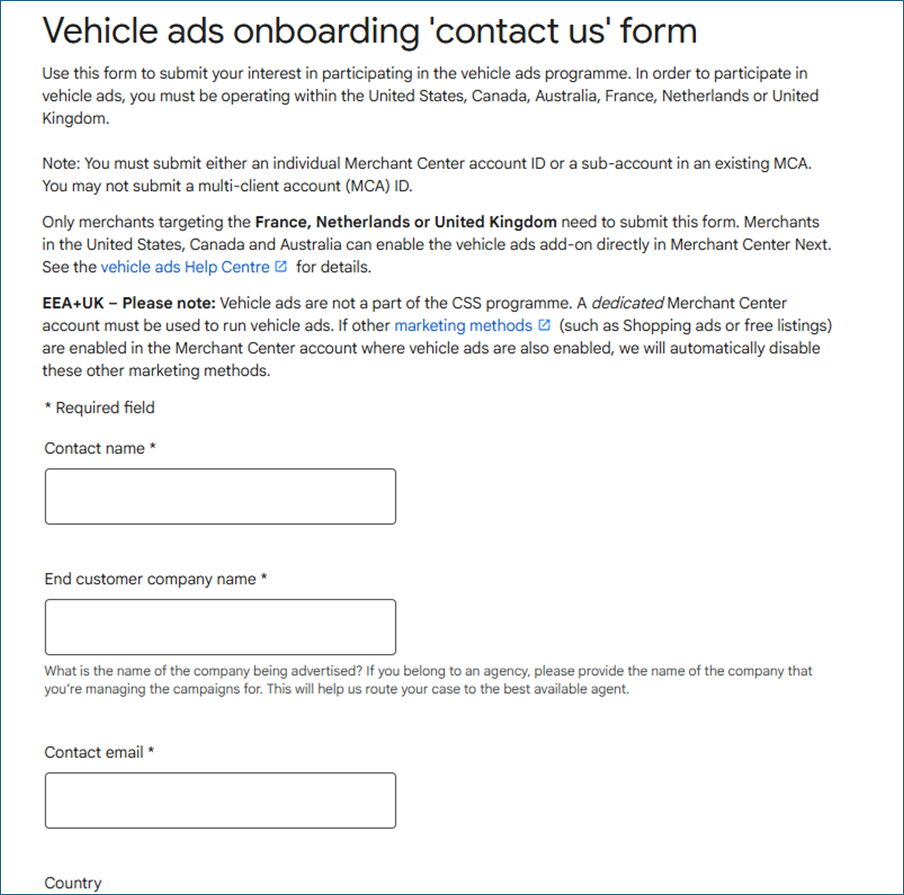
image source: https://support.google.com/merchants/contact/vehicle_listing_ads?sjid=12976395410450074921-EU
Prerequisites and Eligibility
Before you can create Vehicle Listing Ads, your Merchant Center account must meet Google’s allowlisting criteria. To qualify for VLA, you’ll need your Merchant Center setup to meet the following:
- A dedicated Merchant Center account for vehicle ads. VLAs aren’t part of the CSS programme.
- A business address in the UK.
- No active data sources or feeds in the account during the allowlisting process.
- No other marketing methods enabled in the same Merchant Center accounts (like shopping ads or free listings). If they are active, Google will disable them automatically during verification.
- The account must not be linked to Google Ads during approval. Linking will only happen after Google has confirmed allowlisting.
Once you’ve met all of the prerequisites and submitted the official onboarding form, Google will review your Merchant Center configuration, confirm your eligibility and notify you once you’re approved. If you need help, Key Principles search services can guide you through verification, setup and campaign readiness.

Image source: https://blog.google/products/ads-commerce/introducing-vehicle-ads/
How to Set Up Google Vehicle Listing Ads Step-by-Step
It can seem complex to set up, but following a structured process means your VLAs will be compliant and have optimal performance. Here’s our step-by-step guide:
Step 1: Create a Vehicle Data Feed
This is the basis of all VLAs. Google uses this data to match inventory with shopper intent.
Key points:
- Required attributes: make, model, year, price, mileage, condition, colour, image link, landing page URL (your vehicle description page), availability and VIN.
- File formats: CSV, TSV or XML. Make sure the format matches Google’s specifications.
- Accuracy and frequency: keep the feed updated in real time or at regular intervals. Inventory chances, pricing updates and vehicle availability must be reflected promptly.
- Common feed issues: Missing or duplicate VINs, broken or mismatched URLs, inconsistent pricing. Regularly check these to prevent campaign disapprovals.
Step 2: Upload and Verify Feed in Google Merchant Center
Once you’ve got your feed ready, here’s how to upload it:
- Go to “Add-on” and enable Vehicle Ads in Merchant Center.
- Upload the vehicle feed under the “Feeds” section.
- Set a fetch schedule. This means there’ll be automatic syncing with your inventory management system.
- Verify and claim your website domain. This means your ads will link correctly to your vehicle description pages.
- Use the Diagnostics tab to monitor errors, warnings and disapprovals. Fix any issues found promptly so you avoid any disruptions.
Tip: Regularly review feed updates. This is especially important if your inventory changes daily. Google prioritises accurate and fresh data for ad delivery.
Step 3: Link Merchant Center with Google Ads
For Google Ads to access your vehicle feed:
- Go to Settings – Linked Accounts – Google Ads in Merchant Center.
- Check the correct Ads account is connected after allowlisting.
This connection means Performance Max campaigns can pull vehicle data for ad generation automatically.
Step 4: Create a Performance Max Campaign with Vehicle Feed
Performance Max campaigns are the only type of ads that will support VLAs. To set one up:
- In Google Ads, choose Performance Max – Vehicle Feed as the campaign subtype.
- Choose your campaign objective as Sales or Leads.
- Define your locations (country, city or radius targeting).
- Set your budget and bidding strategy. Maximise conversions is recommended.
- As an option, you can attach asset groups with custom headlines, images and descriptions. Or you can allow automatic asset generation for Google to optimise creative combinations.
Note that in the UK, at the time of writing, Display Network support for VLAs is still limited. Your ads will primarily appear on Search and YouTube.
Tip: Testing different campaign objectives and asset groups can help Google AI identify which combinations give the highest-quality leads.
Step 5: Connect Business Data and Conversion Tracking
To track both online and offline performance:
- Link your Google Business Profile or use a shop feed alternative if you don’t manage the profiles directly.
- Set up conversion actions including lead form submissions, phone calls and in-dealership visits.
- Track high-value actions separately. For instance, test-drive bookings often correlate with higher conversion rates and revenue.
Step 6: Review, Test and Launch
Before launching at scale:
- Use the ad preview tool. Confirm that inventory displays correctly with accurate prices and images.
- Allow 24-48 hours for Google to review and approve your feed and campaign.
- Check the Diagnostics tab for any disapprovals or warnings. Fix issues before increasing budgets or targeting additional regions.
Tip: Start with a smaller budget to monitor campaign performance and feed accuracy. Once approved and optimised, scale gradually for maximum reach and ROI.
Avoiding Common Pitfalls and Measuring Success
When setting up Google Vehicle Listing Ads, careful attention to feed quality and campaign management is critical for success. Common pitfalls include:
- Incomplete or outdated feeds. Anything from missing vehicles to incorrect prices can trigger disapprovals.
- Account conflicts. Using Merchant Center accounts that run other types of ads can prevent allowlisting.
- Data mismatches. Your feed must match your website listings exactly.
- Image issues. You need clear, consistent photos with neutral backgrounds. Poor-quality images reduce ad performance.
- Premature launch. Wait until your account is allowlisted before you activate any campaigns.
Measuring success
Track performance both online and offline. Focus on key performance indicators based on the objectives set in your campaign, i.e. conversions and conversion rates.
Use Google Ads reporting and Merchant Center diagnostics to monitor feed health. These can also help you find out your top-performing models that generate the most qualified leads and help you optimise for improved visibility of these models.
Policy Compliance and Approval Checks
Google enforces strict guidelines to ensure VLAs are accurate and transparent. Key rules include:
- Accurate pricing and availability. Feed data must match your website.
- Financial disclosures. Clearly state terms and eligibility for any offers.
- No promotional content in feeds. Avoid text, contact numbers or marketing messages in feed attributes.
Violations can delay approvals or lead to disapprovals, so regular audits are essential.
Need help checking compliance? Contact our experts for guidance.
Google Vehicle Listing Ads vs. Auto Trader: A New Contender?
One final thought… Auto Trader has long dominated the UK used car market, and its increasing fees are crushing our clients’ margins. But as online buying habits continue to evolve, we believe this is a new opportunity for dealerships. Could VLAs be the key player to effectively challenge Auto Trader’s traffic stronghold and reduce a reliance on their platform? It’s a space worth watching closely.
Conclusion
Google Vehicle Listing Ads have quickly become an effective tool for UK car dealerships. They offer highly qualified leads with AI optimisation across online and offline channels. Setting up VLAs correctly requires a dedicated Merchant Center account, an accurate and up-to-date vehicle feed and a properly configured Performance Max campaign.
Ready to get started? Contact Key Principles to review your setup or launch your first campaign today.